
I really like the Windows Terminal – an awesome tool which I use daily. Some time ago, I posted my My Windows Terminal Config. These days, I added the Exchange Online Shell as another option in my config. Here is how you can add it.
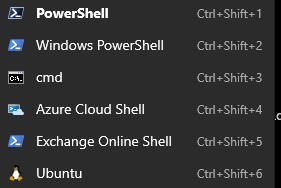
Note: Exchange Online Shell does not work within powershell core, that’s why we use standard powershell.
Step 1: Install ExchangeOnlineManagement
Open Powershell (not core) as administrator and install the module “ExchangeOnlineManagement”:
Install-Module ExchangeOnlineManagement
Step 2: Verify if it works
Import-Module ExchangeOnlineManagement
Connect-ExchangeOnline
# sign in
Get-MailUser
If Connect-ExchangeOnline throws:
Could not load type ‘System.Security.Cryptography.SHA256Cng’ from assembly ‘System.Core, Version=4.0.0.0, Culture=neutral, PublicKeyToken=b77a5c561934e089’ …
switch to “classic” Powershell. This error occurs if you use Powershell Core. ExchangeOnlineManagement only works within Powershell.
Step 3: Add Exchange Online to Windows Terminal
Open settings of Windows Terminal and add:
      {
        "guid": "{2f59be3b-a8a2-4131-98c9-e8531cbc4dd9}",
        "name": "Exchange Online Shell",
        "commandline": "powershell.exe -NoExit -Command \"Import-Module ExchangeOnlineManagement; Connect-ExchangeOnline\"",
        "background": "#012456",
        "icon": "ms-appx:///ProfileIcons/{61c54bbd-c2c6-5271-96e7-009a87ff44bf}.png"
      }
If you always use the same user, you can add “-UserPrincipalName [email protected]” to the config:
      {
        "guid": "{2f59be3b-a8a2-4131-98c9-e8531cbc4dd9}",
        "name": "Exchange Online Shell",
        "commandline": "powershell.exe -NoExit -Command \"Import-Module ExchangeOnlineManagement; Connect-ExchangeOnline -UserPrincipalName [email protected]\"",
        "background": "#012456",
        "icon": "ms-appx:///ProfileIcons/{61c54bbd-c2c6-5271-96e7-009a87ff44bf}.png"
      }

Comments are closed